In this guide:
- Overall similarity
- What are overlapping sources?
- Match groups
- Sources
- Refining the report: filters and exclusions
Highlighted matches are instances of text similarity; they do not always indicate plagiarism. The match could be a quote or cited material listed in a bibliography. We aim to provide as much information for each match as possible to assist in your assessment of its legitimacy.
Overall similarity
The overall similarity is a percentage showing how much text from the submission matches to sources in our database. We calculate this percentage by dividing the number of matching words by the total number of words in the document. Matched text is highlighted in the submission.
What are submissions compared against?
A submission (with at least 20 words or more) made to an assignment generates a Similarity Report. The Similarity Report is the result of comparison between the text of the submission against the search targets, or databases, selected for the assignment.
Depending on your settings, these databases may include:
- billions of pages of active (and archived) internet information, previously submitted works,
- tens of thousands of periodicals, journals, and publications.
- Any matching or highly similar text discovered is detailed in the Similarity Report.
What are overlapping sources?
It is possible that similar text can be found within multiple sources. When text is similar to more than one source, whichever source has the most matched words will display first. Selecting a source card will highlight the matching text in the submission.
You will be able to switch between displaying overlapping sources and hiding them by selecting the Show overlapping sources option at the top of the Source list.
'Show overlapping sources' turned off
When multiple sources are found matching the same exact words, the report will prioritize sources as best match, or top source, in this order:
-
Internet
-
Publications
-
Submitted Works
To reveal overlapping sources matched to the same text, choose the submission highlight or source card with the match in question, then select View other sources at the bottom of the card in the right-side panel: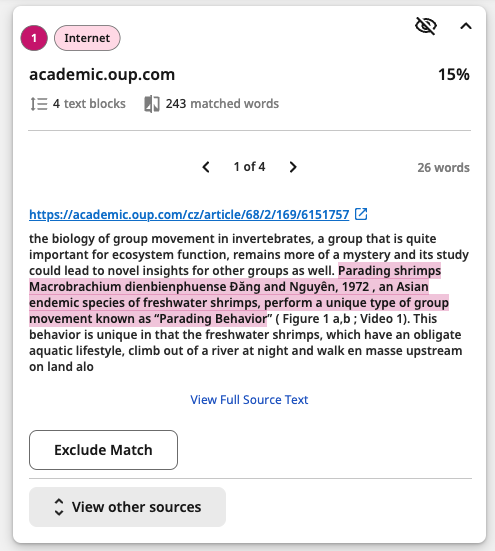
‘Show overlapping sources’ turned on
To display individual cards for each matched source (including sources matched to the same text), select the Show overlapping sources option at the top of the Sources panel.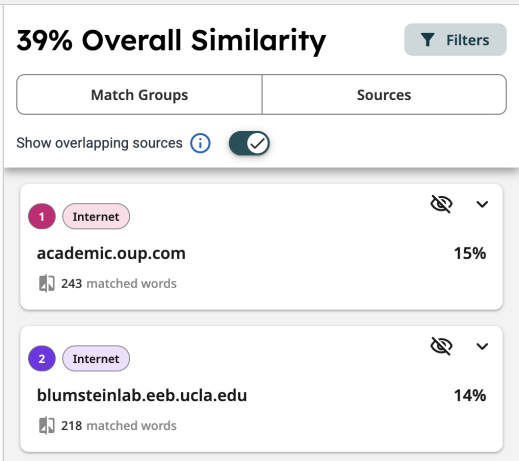
When Show overlapping sources is selected all sources that have been found will be displayed, even if they contain partial matches to other displayed sources within the same domain.
Match groups
The Match Groups view divides the overall similarity into four categories based on the usage of in-text citation and quotation marks. Viewing instances of similarity grouped by common characteristics can help you identify issues (as well as non-issues and teachable moments) faster.
Highlight colors and criteria
Each match (a string of text in a submission that matched to a source) is highlighted in its corresponding match group color. The color and criteria for each match group are:
-
Not Cited or Quoted - The number of text matches that are not written as a quotation or has no citation to its original source.
-
Missing Quotations - This text is cited, but the match is so exact that it may also require quotation marks.
-
Missing Citation - This text is written as a quote, but lacks a citation to its original source.
-
Cited and Quoted - This text contains a quotation and is cited to a source. You may want to review them for your preferred formatting.
Source number
Each highlight in the document has a source number appended to it, which is indicated in the top row of its corresponding source card. Selecting a highlight in the document will bring its corresponding source card into focus in the right-side panel.
Selecting a match group
To review matches of a particular group, select one of the four match groups to bring matches with that criteria into focus in the right-side panel.
Sources
Sources provides a list of sources organized in descending order by highest total similarity percentage. (These sources are the same as those detailed in source cards in the Match Groups tab.)
Viewing Matches with Source Cards
Source cards contain details about the highlighted match and its source material. Expand a source card for more options.
The top row indicates the top matching source ranking number (this number also appears next to the corresponding highlighted match in the document), the database type, and the match group criteria.
The second row contains the name of the top matching source and the percentage matched with the document.
The third row indicates the number of matching text blocks to that source and match group, as well as a total word count for all matches with the same criteria.
Exploring a source card
To view the source's full url, along with more actions, expand the source card by selecting either:
- A highlighted match in the document,
- or a source card in the right-side panel
Navigating multiple matches in one source card
When there are more than one match to a single source within a match group, you can skip to each one in the document using the < and > arrows inside the source card.
Multiple, overlapping sources for one match
When text is similar to more than one source, whichever source has the most matched words is prioritized in Match Groups. To see all the sources matched against a document, including overlapping sources, navigate to All Sources. If you exclude the top source for similar text that matched to multiple sources, the second-strongest match and source card are displayed in Match Groups and Top Sources.
Refining the report: filters and exclusions
Using filters and exclusions help you focus on the most meaningful matches.
- For information on how to use filters and exclusions, see our guidance on Managing filters and exclusions in the new, enhanced Similarity Report.
- For detailed explanations of how filters and exclusions work, see our guidance on How exclusion filters refine the Similarity Report.